<font color="#FF8000">作者:Simon Li</font>
这个简单的Demo是介绍如何用ChipScopy创建并运行link sweep。
<strong>搭建环境</strong>
1. Python 3.8 安装和虚拟环境的创建,以及example的获取可以参考: <a target="_blank" href="https://xilinx.github.io/chipscopy/2021.2/chipscopy_installation.html">… />
<br />
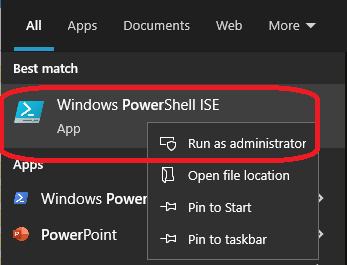
2. 激活虚拟环境打开jupyter notebook:
<img src="http://xilinx.eetrend.com/files/2022-06/wen_zhang_/100561559-259051-1.p…; alt="">
3. 打开Power shell通过运行以下命令打开jupyter notebook:
a. Change the directory to the installed python dir:
cd c:\xilinx\python
b. Activate virtual environment, enter the following:
venv\scripts\activate
c: start jupyter
jupyter notebook
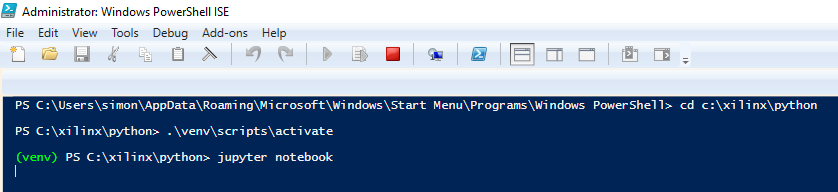
<img src="http://xilinx.eetrend.com/files/2022-06/wen_zhang_/100561559-259053-2.p…; alt="">
4. 以下link将会用默认浏览器打开
<img src="http://xilinx.eetrend.com/files/2022-06/wen_zhang_/100561559-259054-3.j…; alt="">
5. 连接Type C到VCK190,连接bank105的Ch2/3到zSFP,开启电源。
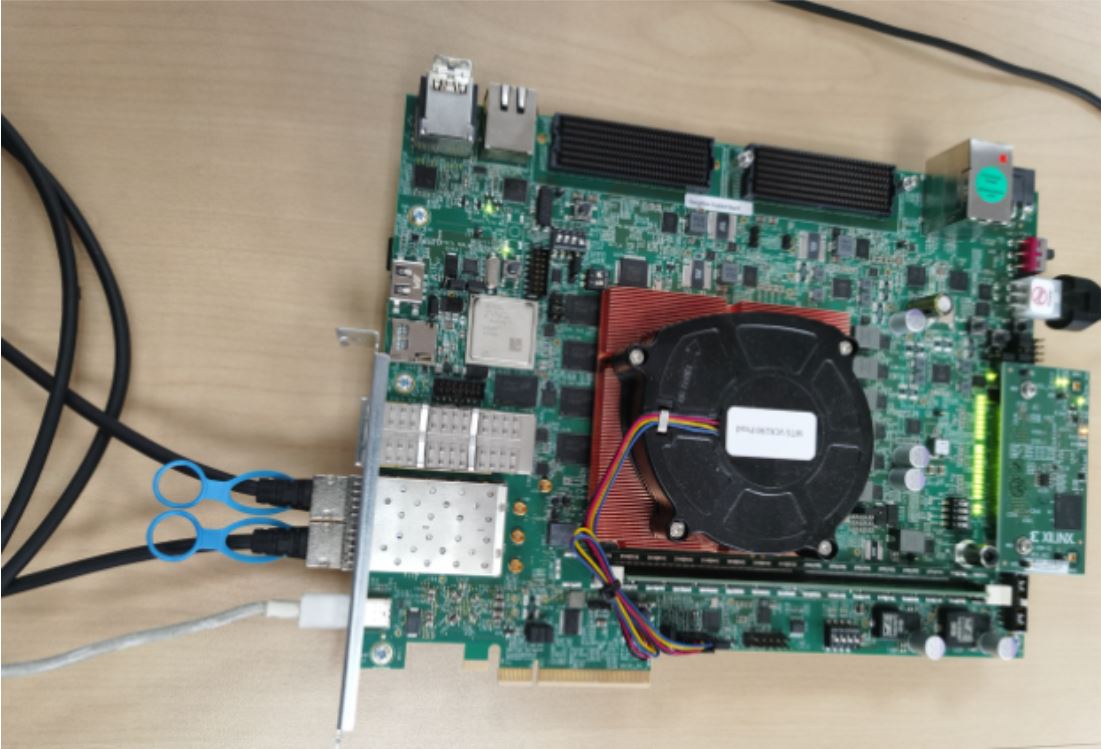
<img src="http://xilinx.eetrend.com/files/2022-06/wen_zhang_/100561559-259055-4.j…; alt="">
<strong>在ChipsCopy的例子里查看需要修改的代码</strong>
更多信息参考附件.py.
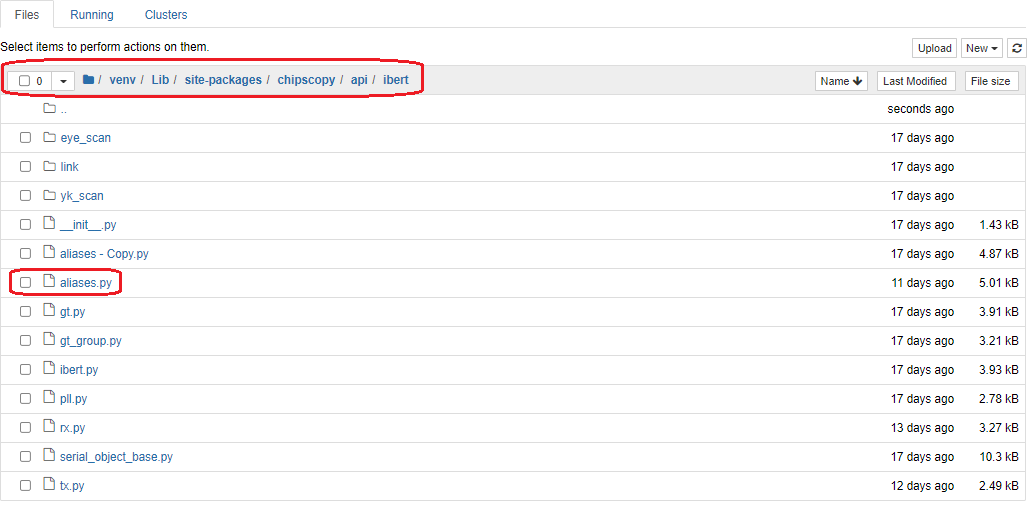
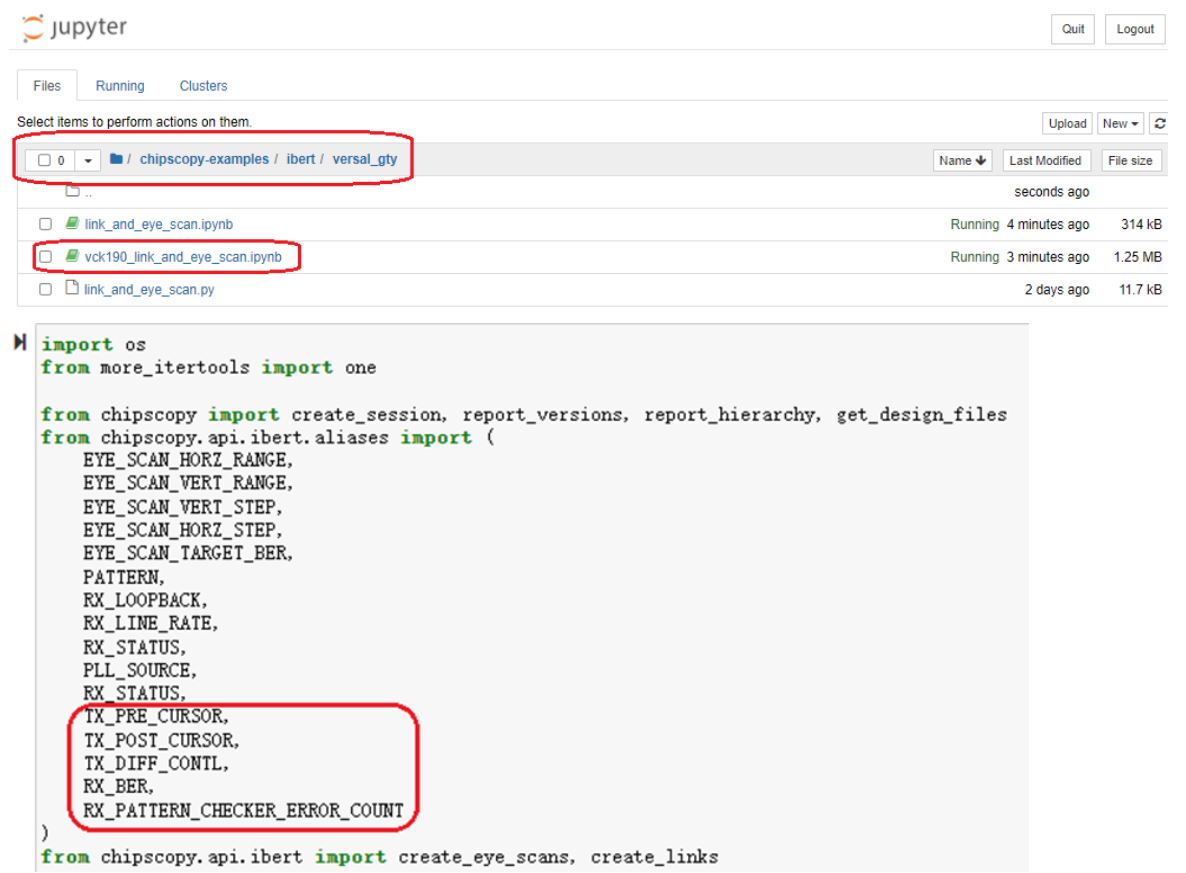
1. 双击the /chipscopy-examples/ibert/versal_gty/vck190_link_and_eye_scan.ipynb,确认 从aliases.py导入需要ports。
<img src="http://xilinx.eetrend.com/files/2022-06/wen_zhang_/100561559-259056-5.j…; alt="">
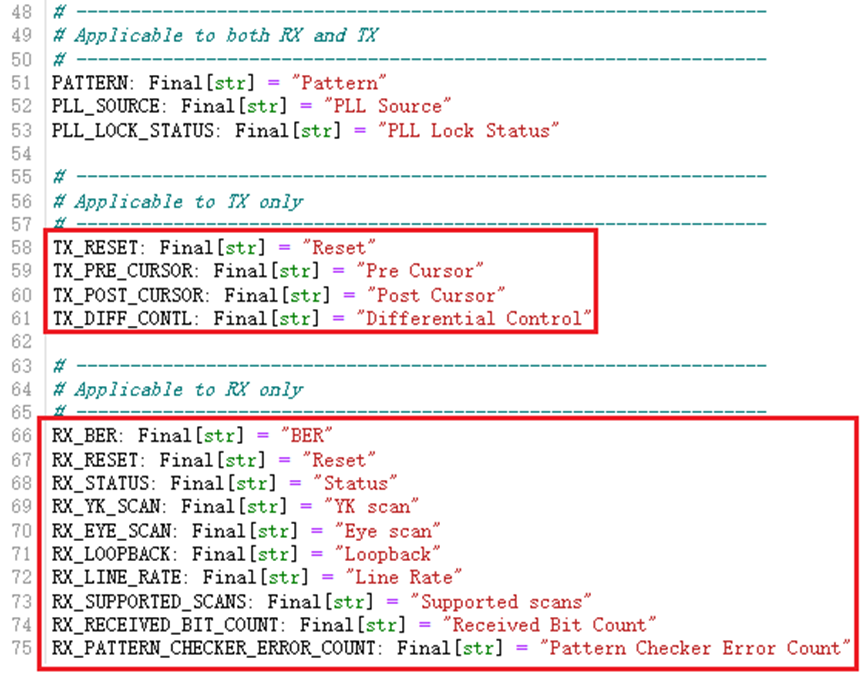
2. 如果<a rel="noopener" target="_blank" href="http://aliases.py/">aliases.py</a>没有定义,也需要在<a rel="noopener" target="_blank" href="http://aliases.py/">aliases.py</a>里加上。
<img src="http://xilinx.eetrend.com/files/2022-06/wen_zhang_/100561559-259057-6.p…; alt="">
<img src="http://xilinx.eetrend.com/files/2022-06/wen_zhang_/100561559-259058-7.p…; alt="">
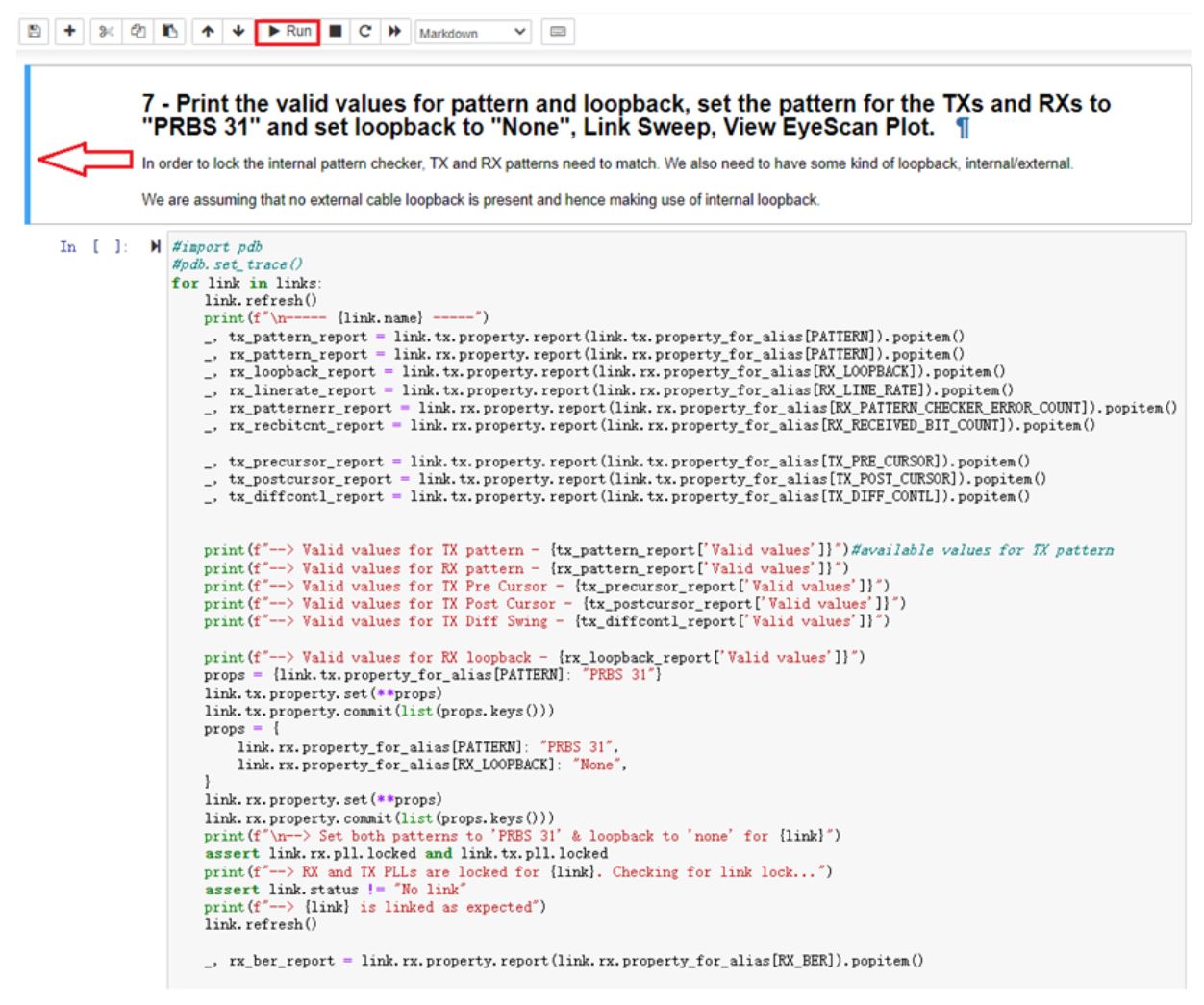
3. 最主要的Link sweep module, 请参考demo的step 7.
Demo step by step:
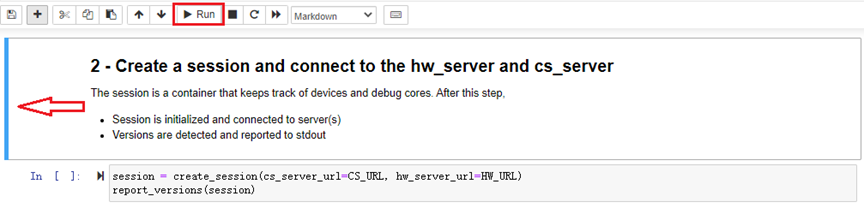
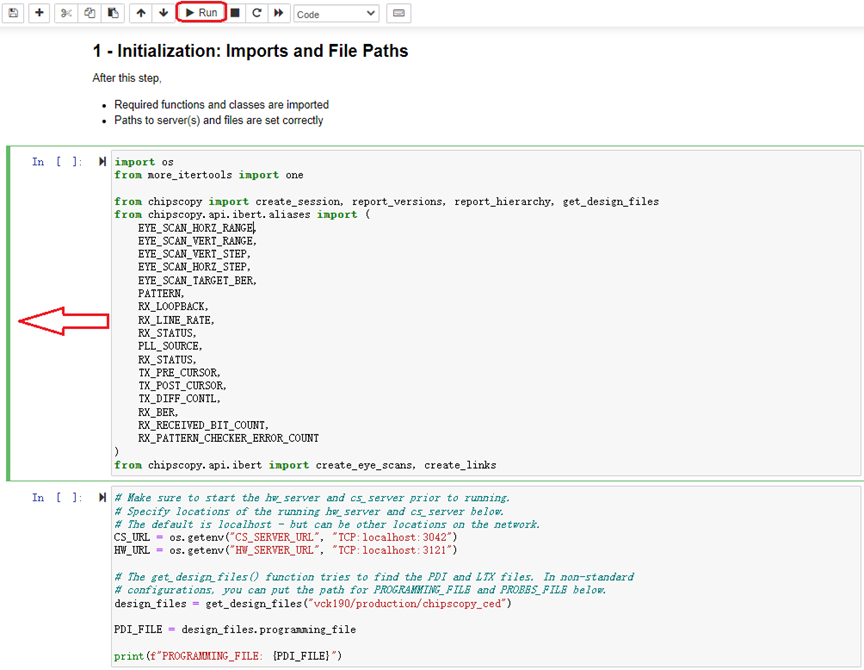
Step 1. 初始化,单击run运行step 1
<img src="http://xilinx.eetrend.com/files/2022-06/wen_zhang_/100561559-259059-8.p…; alt="">
Expected Output
<img src="http://xilinx.eetrend.com/files/2022-06/wen_zhang_/100561559-259060-9.p…; alt="">
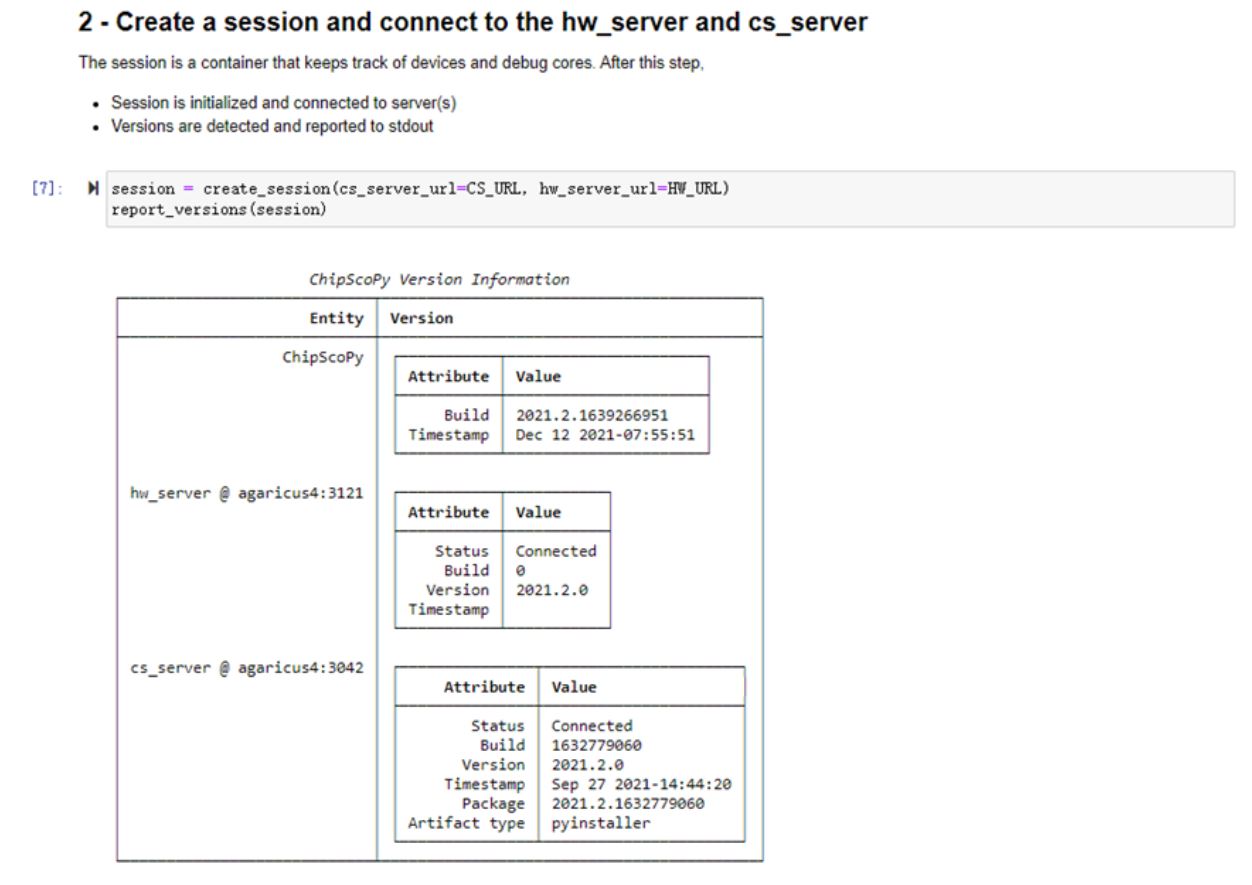
Step 2. 创建一个local或者remote session:
<img src="http://xilinx.eetrend.com/files/2022-06/wen_zhang_/100561559-259061-10…; alt="">
Note: 如果选择localhost, 可能看到以下错误. 可以在HW manager里尝试连一下JTAG,然后再关掉hw_server.

<img src="http://xilinx.eetrend.com/files/2022-06/wen_zhang_/100561559-259062-11…; alt="">
Expected output
<img src="http://xilinx.eetrend.com/files/2022-06/wen_zhang_/100561559-259063-12…; alt="">
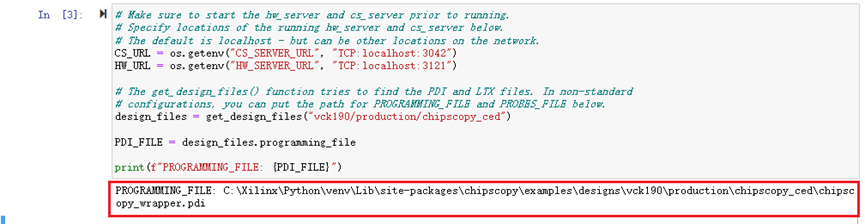
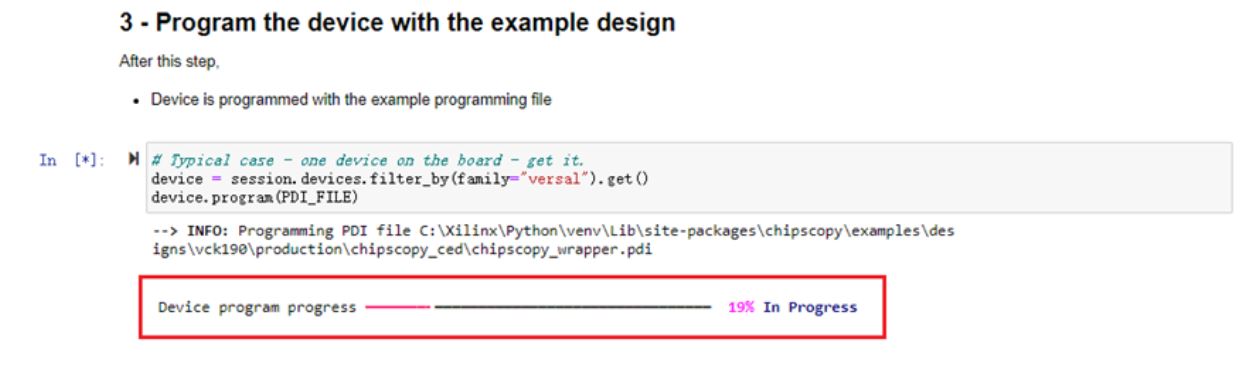
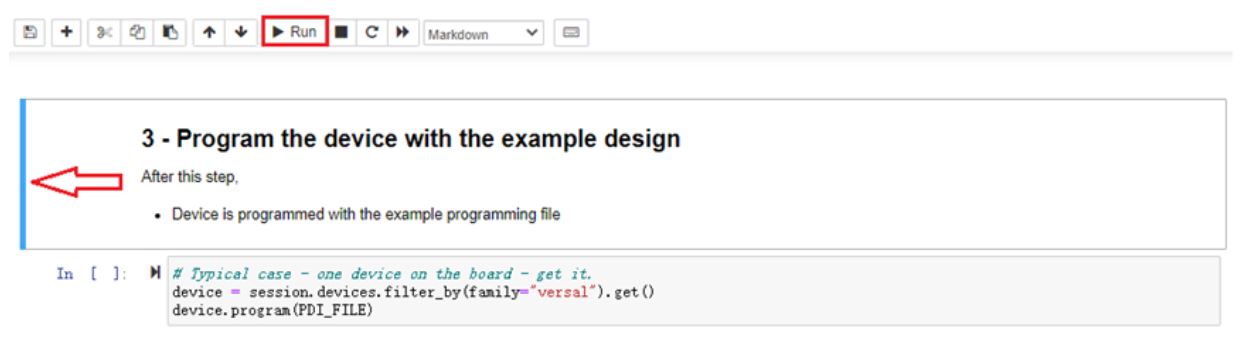
Step 3. 确保目录正确,并下载example design的PDI.
<img src="http://xilinx.eetrend.com/files/2022-06/wen_zhang_/100561559-259064-13…; alt="">
Expected output
<img src="http://xilinx.eetrend.com/files/2022-06/wen_zhang_/100561559-259065-14…; alt="">
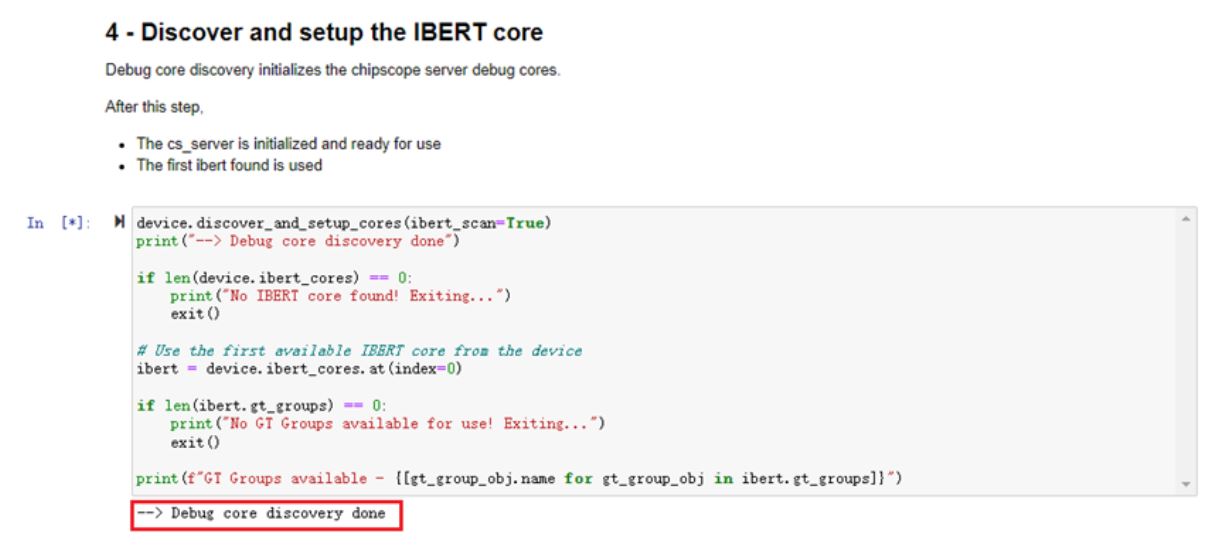
Step 4. 找到并建立IBERT core。
<img src="http://xilinx.eetrend.com/files/2022-06/wen_zhang_/100561559-259066-15…; alt="">
Expected output
<img src="http://xilinx.eetrend.com/files/2022-06/wen_zhang_/100561559-259067-16…; alt="">
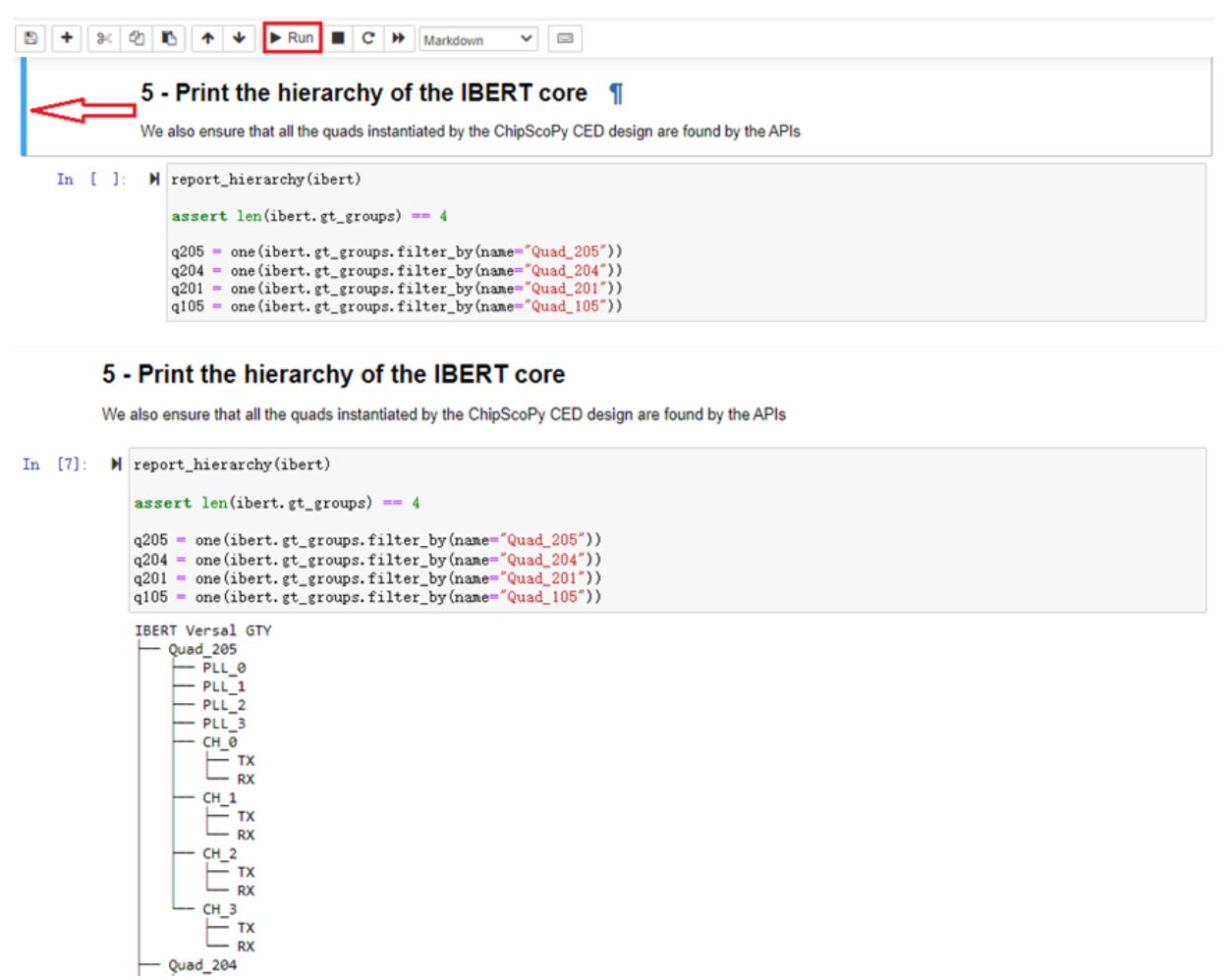
Step 5. 打印IBERT core的结构
<img src="http://xilinx.eetrend.com/files/2022-06/wen_zhang_/100561559-259068-17…; alt="">
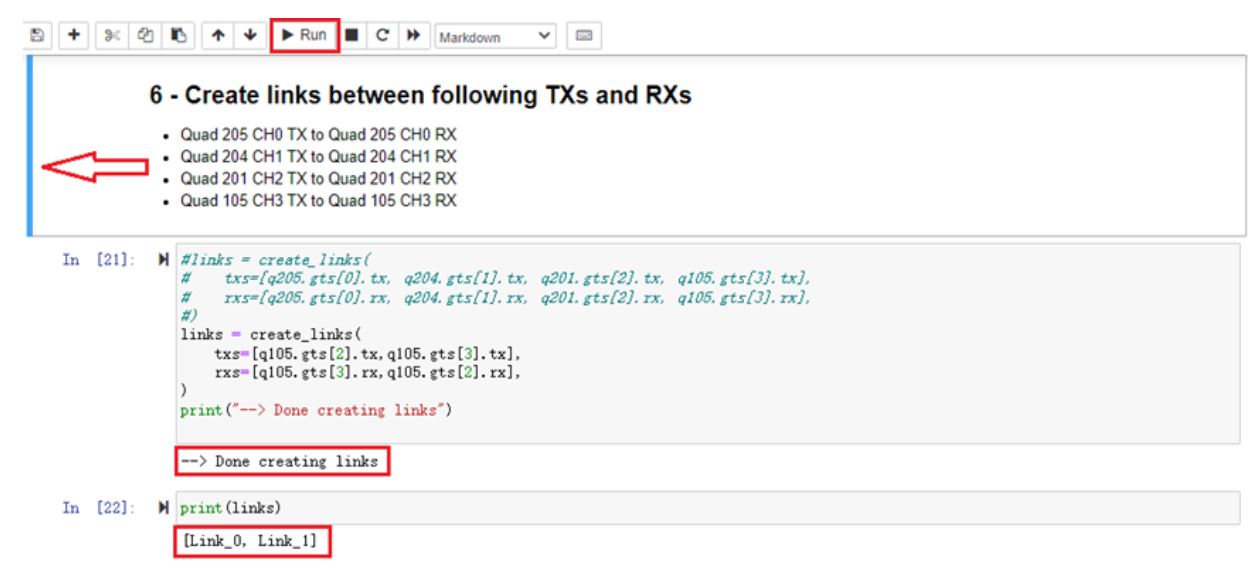
Step 6. 创建bank 105的CH2/CH3(外部光纤环回)
<img src="http://xilinx.eetrend.com/files/2022-06/wen_zhang_/100561559-259069-18…; alt="">
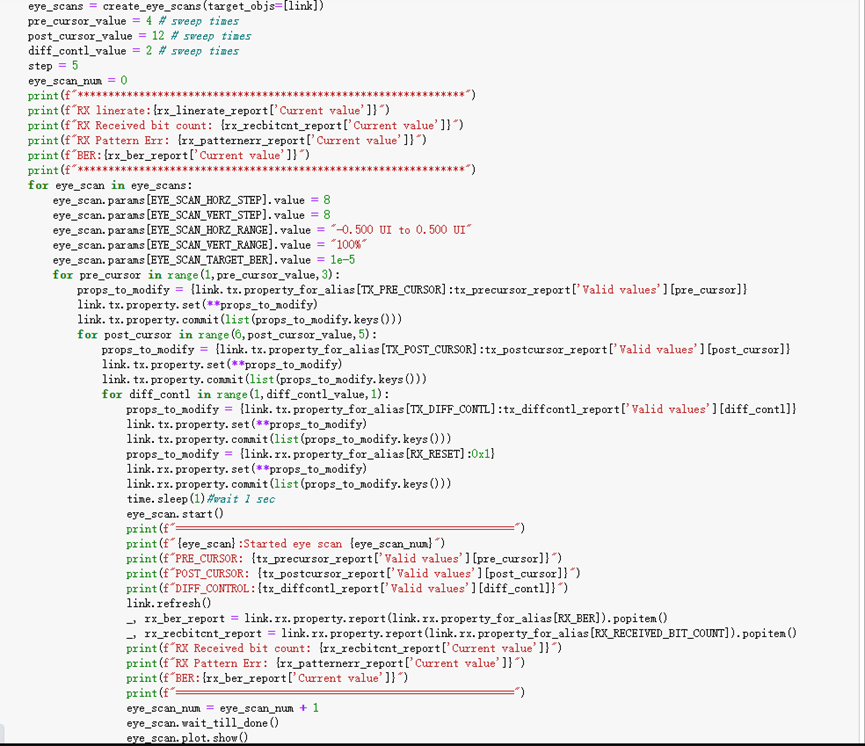
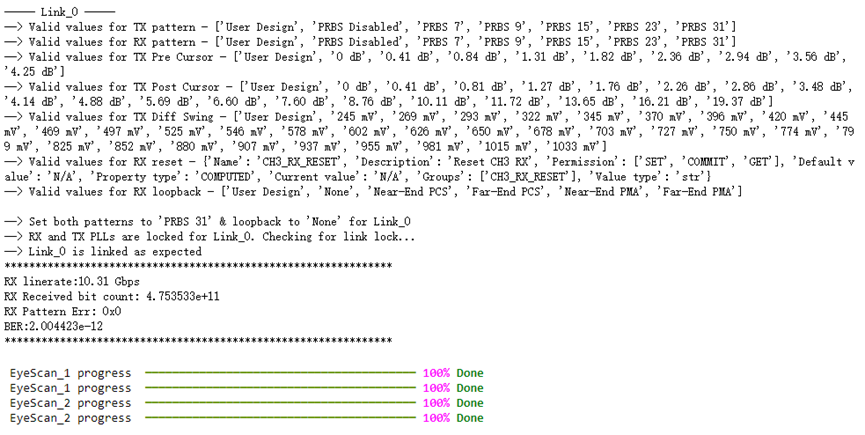
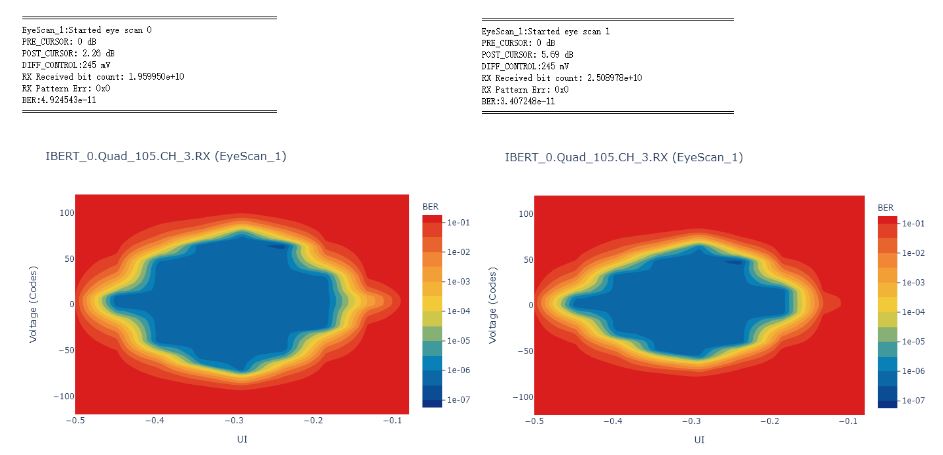
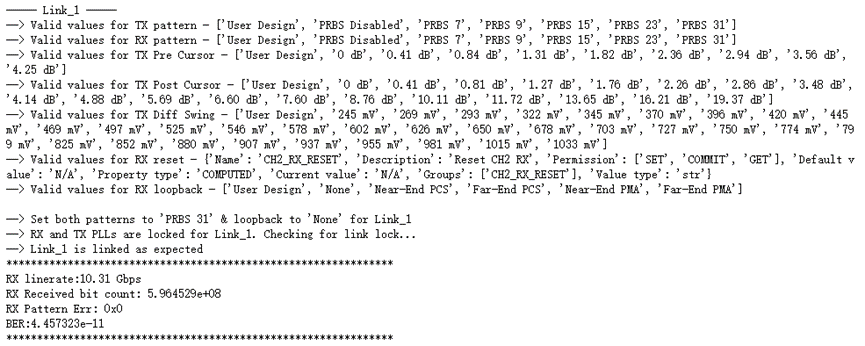
Step 7. 设置PRBS31,Loopback=None, 配置sweep parameters. 将scan plots按顺序画出并显示. 其中在scan plot的上方有一个Summary,可以看到相关参数设置以及扫描结果.
<img src="http://xilinx.eetrend.com/files/2022-06/wen_zhang_/100561559-259070-19…; alt="">
<img src="http://xilinx.eetrend.com/files/2022-06/wen_zhang_/100561559-259071-20…; alt="">
<img src="http://xilinx.eetrend.com/files/2022-06/wen_zhang_/100561559-259072-21…; alt="">
<img src="http://xilinx.eetrend.com/files/2022-06/wen_zhang_/100561559-259086-01…; alt="">
<img src="http://xilinx.eetrend.com/files/2022-06/wen_zhang_/100561559-259087-02…; alt="">
<img src="http://xilinx.eetrend.com/files/2022-06/wen_zhang_/100561559-259088-03…; alt="">
Known issue: 横坐标的UI还不是 -0.5UI~0.5UI, BER 始终是1e-07,和设置还不一致。